
I’ve been following the news about technology, startups, and venture capital firms for a long time. Every once in a while, I try to keep track of the names, the people and companies involved, and what they did when I’m reading tech news. But it always ended up like my childhood attempts at news clipping: I eventually gave up because it was too time-consuming and labor-intensive.
I still take notes when I read the news. However, if I could extract that kind of structured information from the news, that would be a good add-on.
Like many others, I’ve been playing around with AI since ChatGPT came out. One day, I read a post from Simon Willison. Through the links in it, I learned about LLM, a CLI tool and Python library he developed for interacting with LLMs (large language models). (To avoid confusion, I will refer to this tool as “LLM CLI” throughout the post.) As I read through the user manual, I discovered an interesting use of LLM CLI in the Schemas section, and eventually, I put together an AI-powered news clipping workflow.
In this post, I want to share how I built my AI-powered news clipping workflow. I’ve been using and tweaking this workflow from time to time since the end of May, when I started using LLM CLI. I’ll walk through the tools I used and how the system is structured, and hopefully this post will inspire you to adapt the idea for other types of news that interest you. If you are familiar with CLI tools, I think it would be easy to build. If you’re not, with some help from ChatGPT or Claude, it could also be done. (I’m the latter one.)
Table of Contents
How it Works
Basically, I want to have an LLM to do the news clipping job for me.
It’s like hiring an intern to read the news I assigned, make news clippings, and organize them into collections that I can easily refer to whenever needed.
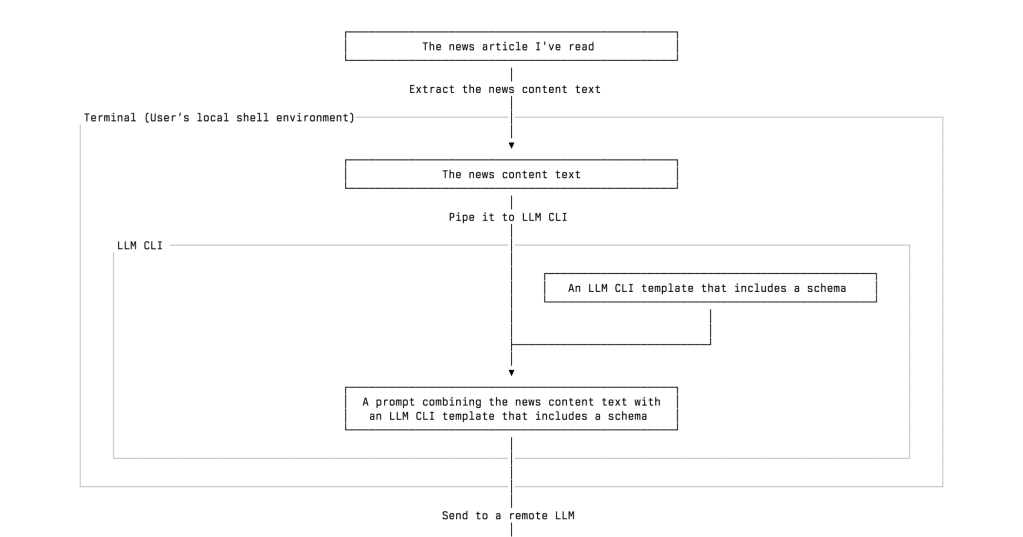
What I built is an automatic workflow of extracting and classifying information of tech news, especially the news about tech startups and VC firms, using the LLM I chose. Here is a simplified overview of my workflow, and I will leave some details for later:
- I read a tech news article about a startup that raised funding from several venture capital firms. Then I decide whether to add those persons, organizations, and incidents into my database. You may wonder why I don’t record as much startup news as possible without reading it first. I will address this question later.
- I send the news text to a remote LLM, such as ChatGPT or Gemini, through LLM CLI. The model extracts structured information from the article, including the people and organizations mentioned, whether they are VCs, their roles, and the actions they took, and returns it in valid JSON format.
- I review and import the extracted data into a SQLite database, which I can later query or review as needed.
Take this news article, 〈Zed Raises $32M Series B Led by Sequoia to Scale Collaborative AI Coding Vision〉, as an example. The returned structured data looks like the following:
Click to expand or collapse the code block
{"items":[{"name":"Nathan Sobo","organization":"Zed Industries","role":"CEO and co-founder","is_vc":"unknown","learned":"Nathan Sobo is the CEO and co-founder of Zed, emphasizing the importance of collaborative coding and linking conversations directly to specific sections of the code.","article_headline":"Zed Raises $32M Series B Led by Sequoia to Scale Collaborative AI Coding Vision","article_date":"2025-08-20"},{"name":"Sonya Huang","organization":"Sequoia Capital","role":"Partner","is_vc":"yes","learned":"Sonya Huang is a Partner at Sequoia Capital and expressed excitement about Zed's innovative approach to collaborative coding, indicating it represents a significant shift in software development.","article_headline":"Zed Raises $32M Series B Led by Sequoia to Scale Collaborative AI Coding Vision","article_date":"2025-08-20"},{"name":"none","organization":"Zed Industries","role":"none","is_vc":"unknown","learned":"Zed Industries is the creator of Zed, a high-performance open-source code editor focused on collaborative coding capabilities, which recently raised $32 million in Series B funding led by Sequoia Capital.","article_headline":"Zed Raises $32M Series B Led by Sequoia to Scale Collaborative AI Coding Vision","article_date":"2025-08-20"},{"name":"none","organization":"Sequoia Capital","role":"none","is_vc":"yes","learned":"Sequoia Capital led the $32 million Series B funding round for Zed Industries, indicating their support for innovative technology in developer tools.","article_headline":"Zed Raises $32M Series B Led by Sequoia to Scale Collaborative AI Coding Vision","article_date":"2025-08-20"}]}
After importing, it will look like the following screenshot in a database:
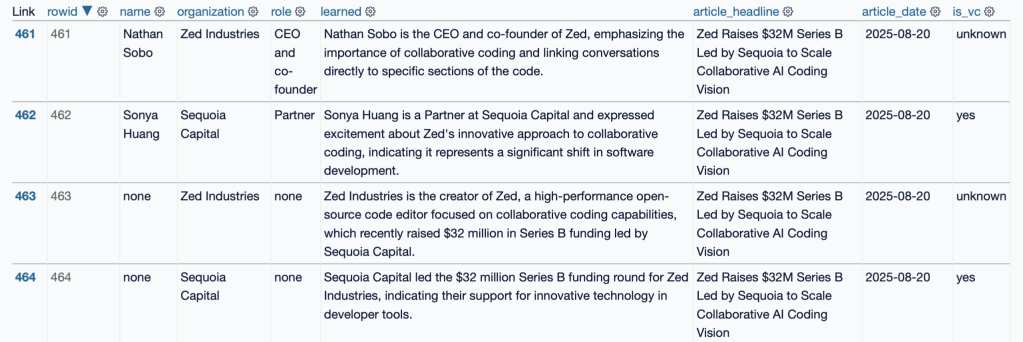
▲ After importing the JSON data into the database, this is the view of that database in the browser using Datasette
Eventually, I combined parts 2 and 3 into one command. If I want to skip the review step, I can just read the news and send it to an LLM, and the news clipping job gets done.
Why I Built This Workflow and How I Use It
Before we move on, I must emphasize that I only apply this workflow to news articles I have personally read. I’m not inclined to process as much news as possible just because it can all be done quickly and automatically. I built this tool to give myself a “sort of” reliable source that helps me keep a close eye on tech and the VC industry.
Another thing I hope you keep in mind is that my workflow is not intended to achieve 100% accuracy. And that’s why I say this workflow is “sort of” reliable.
In my experience, an LLM often succeeds in determining whether someone is a VC based on news content, but for various reasons it sometimes misses. The LLM’s accuracy can never reach 100%. For that reason, I don’t count on it to generate 100% correct data. And that’s why I only use it to process what I read, not what I didn’t read.
After all, I have some confidence in remembering what I read. If I need to check something, the database is always a few keystrokes away. I can retrieve the source (the news article I read) from it.
A good way to think about LLMs is to treat them like interns. Sometimes you feel grateful for their contribution and think they have a lot of potential, and sometimes you feel you should have done the work yourself. As technology analyst Benedict Evans often compares AI to interns, he once said:1
If you have 100 interns, you can ask them to do a bunch of work, and you would need to check the results and some of the results would be bad, but that would still be much better than having to do all of the work yourself from scratch.
The Workflow Breakdown
Now, let’s take a closer look at how my workflow operates. The workflow consists of the following steps:
- Read a news article
- Prepare the text content of the news articles I’ve read
- Pipe the news content text to LLM CLI. It will treat the piped content as part of the prompt it’s about to send with other things/arguments to the LLM you designated.
- Apply the schema and template. They are the keys to our workflow. We need a way to make sure that the LLM will return the right structured data we need in valid JSON format. To achieve it, we use LLM CLI’s schema and template features. We will talk more about them later.
- Get the LLM’s response in a valid JSON format
- Import the data into a SQL database
- Review, query, or update the data as needed
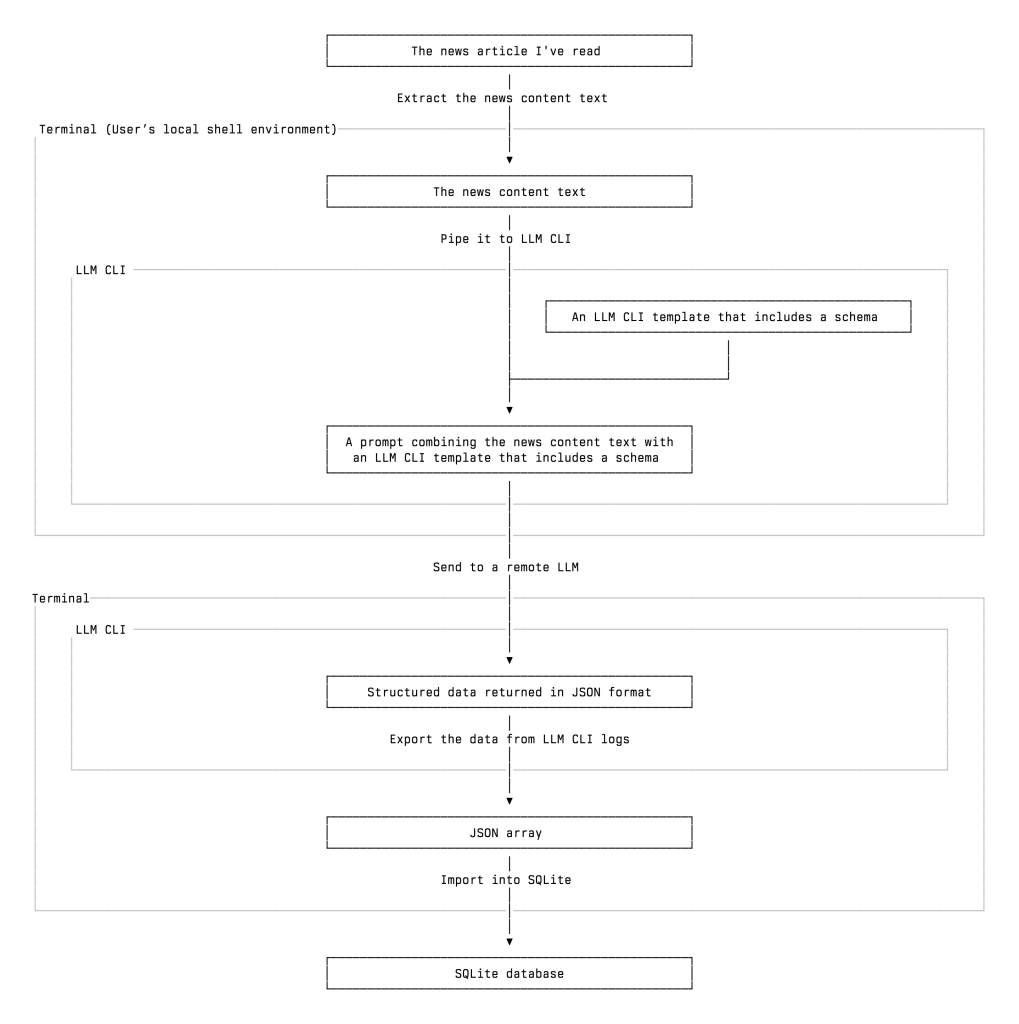
▲ A vertical flowchart of my AI-powered news clipping workflow
What We Need
Most parts of my workflow run in the terminal shell. I use zsh in Ghostty. And to build up this news clipping workflow, we also need:
- An LLM API key (or you can use a local LLM)
- A tool that can fetch the news content. I use the Readwise Reader API to retrieve the full text of the articles I’ve saved and their metadata. There are other options, such as Instapaper’s Full Developer API or Jina AI. In the LLM CLI user manual, Simon Willison uses strip-tags in an example. LLM CLI also supports attaching a PDF with a prompt and sending it to the LLM. So if, for some reason, I can’t extract the text, I can use PDF as a fallback
- A database. I use SQLite, which comes with macOS. I also use sqlite-utils and Datasette to work with the database, both developed by Simon Willison.
Step-by-Step Guide to Building the Workflow
Now we have all the ingredients, let’s make the workflow work. Here is an overview of the steps:
An over view of the steps
1. Get the Text
The first step is to get the full text of the news article I’ve read. I ask ChatGPT to write me a zsh function that I can use Readwise Reader’s tag feature or the article ID to designate which article I want to use, or use the latest article I saved, and then pipe the full text with some metadata, such as title and date, to LLM CLI.
If you just want to try it quickly, you can use Jina AI to get the full text of an online post (although it won’t be as clean as the results I got from Readwise Reader):
curl "https://r.jina.ai/https://www.example.com"
# replace `https://www.example.com` with the url of the news article you want to process
The cleaner the full text of the news article you send to the LLM is, the higher the chance you’ll get high-quality output. Or you can simply use a powerful (and usually more expensive) LLM to get a better output.
2. Install and Set Up LLM CLI
Before we move to the next step, you need to install LLM CLI. You can find the instructions on the website. I used pipx to install LLM CLI. But I’m considering using uv instead. If you want to use Homebrew to install LLM CLI, please read the warning note.
pipx install llm
After installation, you need to set up an LLM API token. If you want to quickly test many different LLMs and find the right one that can return the result you need, you need to install some plugins to use those remote LLMs from Anthropic or Google Gemini.
llm keys set openai
Then you will be prompted to enter the key like this:
% llm keys set openai
Enter key:
The default model is gpt-4o-mini. But you can change it as you want. With the corresponding plugin installed, you can use many models other than OpenAI’s.
After that, you can start designing and setting up the schema and template. Later, you can add the template as an argument to the -t option. You can find very detailed tutorials on setting up LLM CLI and other things we need on its website.
3. Design the Schema and the Template
The most crucial part is to make sure the LLM does precisely what you ask and returns the data in the correct format. And that, for LLM CLI, means designing the right schema and template, which determine what and how the LLMs extract information from the article and return it to you.
Fortunately, Simon Willison already provided a good foundation in the Schemas section of LLM CLI’s user manual. I basically added a few more items and tried it with different models to see what I got from the news articles.
As Simon Willison wrote in the Schemas section of LLM CLI’s documentation, “Large Language Models are very good at producing structured output as JSON or other formats. LLM’s schema feature allows you to define the exact structure of JSON data you want to receive from a model. [in this context, “LLM” refers to Simon Willison’s LLM CLI]”
In LLM CLI, a schema defines the exact JSON structure you want the model to return, including fields such as name, organization, role, and so on.
A template A template builds on top of that schema and includes the system prompt, model selection, and other options. By combining these parts, it tells the LLM what to extract and how the model should perform the extraction.
In practice, you can use a template to ask an LLM to extract specific information from a news article and return it as structured JSON data, which can then be imported into a database. Together, the schema and template features make it possible to reliably extract structured data from unstructured text.
Here, you can define a schema for what we want the LLM to return and save it as a template:
llm --schema $'items:\n  name\n  organization\n  role\n  is_vc bool\n  learned\n  article_headline\n  article_date' \
  --save people
Next, you can edit the template we just saved to tell the LLM how we want it to do the news clipping job. To edit a saved template, we can run:
llm templates edit people
This opens the template in your default shell editor (for example, the editor specified by $EDITOR or $VISUAL). After saving and closing the editor, the template is updated. The edited template may look like this:
system: |
  Extract all people and organizations from a startup funding article.
schema_object:
    type: object
    properties:
        items:
            type: string
        name:
            type: string
        organization:
            type: string
        role:
            type: string
        is_vc:
            type: boolean
        learned:
            type: string
        article_headline:
            type: string
        article_date:
            type: string
    required:
    - items
    - name
    - organization
    - role
    - is_vc
    - learned
    - article_headline
    - article_date
There are some interesting challenges for LLMs in extracting the correct information. For instance, sometimes Readwise Reader parses the commercial text in an article, and the text happens to be about VCs and startups. To prevent the irrelevant content from contaminating the data, you can added one line in the template: “Do not include any information that comes from advertisements, sponsored content, or promotional material.”
4. Pick a Model
The quality of the output we got (using the same template) depends on what model we use. LLM CLI provides a handy interface that lets us quickly switch between many LLMs via its plugin system.
After several iterations, I found that gpt-4o-mini is quite suitable for its cost, and of course, you can use a more powerful LLM like GPT5 to get better results, but it’s way more expensive. Considering the API cost and the quality of the results, I think Google’s Gemini 2.5 Flash Light is also one of the best choices. With these two models, I consistently get good results across different news articles from various outlets.
Because I don’t see the LLMs as 100% accurate tools, I think the key is to find the balance between cost and good-enough results.
If you want to check the LLM’s output before importing the data into the database, you can split the workflow into two parts and make the LLM’s return the breaking point.
5. Import the Data
LLM CLI has a great feature: it automatically logs every conversation to a SQLite database. (It can be turned off.) This means we don’t need to capture the model’s output immediately after receiving the returned data, because we may want to ask the LLM to modify the data or try another LLM. Later, we can extract the structured JSON directly from the logs and import it into our own SQLite database using sqlite-utils. (Here’s a link that explains how to work with the LLM CLI logs.)
To set up the uniqueness key and import the data:
# 1. Retrieve the structured JSON from the most recent LLM response
llm logs -c --schema t:funding_people --data > /tmp/funding.ndjson

# 2. Insert it into our SQLite database using a unique constraint
sqlite-utils insert data.db people_orgs /tmp/funding.ndjson --nl \
  --unique name organization article_headline
Using --unique here is intentional. Because we may need to make further adjustments in the near term, a unique constraint provides duplicate protection without forcing the table to use a rigid primary key. This makes the pipeline safe to rerun and easier to adjust as the structure of your extracted data changes over time.
Putting everything together, here is a one-liner that demonstrates how all of these individual steps come together. This example fetches the article, strips the HTML, applies the template, sends it to the remote LLM, and finally imports the returned structured data into your SQLite database using the logged result:
curl "<ARTICLE_URL>" | \
  uvx strip-tags | \
  llm -t people > /dev/null && \
  llm logs -c --schema t:people --data-key items --data | \
  sqlite-utils insert data.db people --nl --unique name organization article_headline
This compact pipeline shows the entire workflow executed in one command: retrieve the full text, clean it, extract structured data using your template, read the result back from LLM CLI’s logs, and load it into your database with a unique constraint.
6. Play with the Database
After that, you can use Datasette to review the database in my web browser:
datasette "<PATH_TO_DATABASE>"
It will show you something like:
INFO: Uvicorn running on http://127.0.0.1:8001 (Press CTRL+C to quit)
Then you can open the URL in a browser to interact with the database.
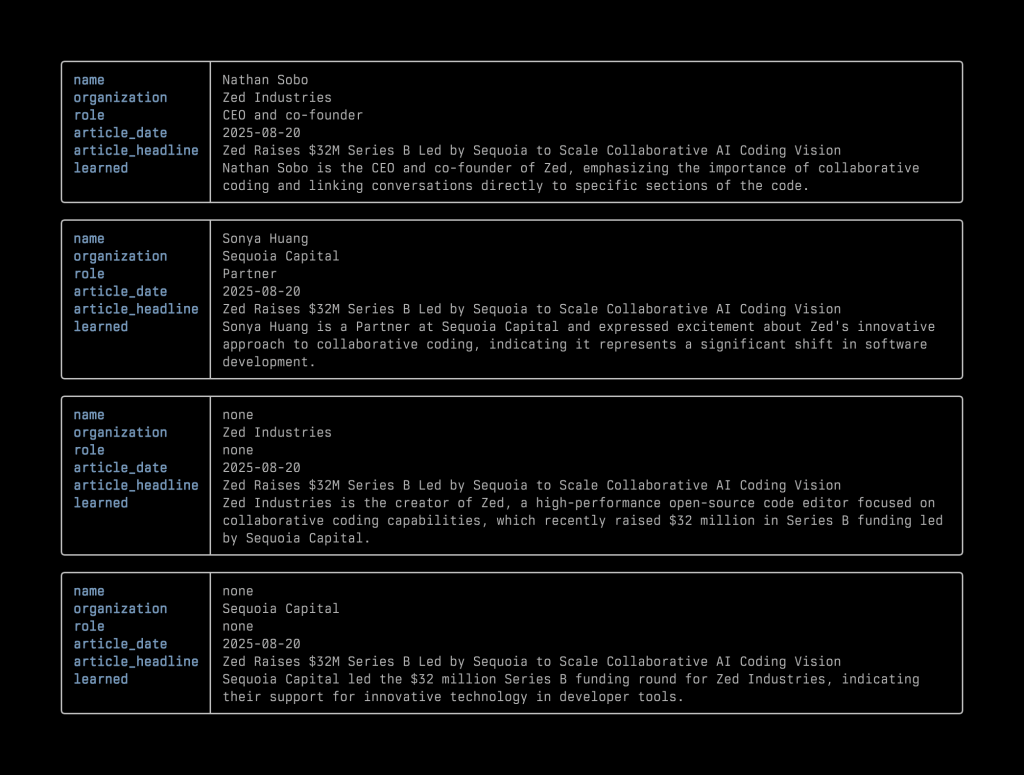
Now that we have a database, we can run some queries. For now, what I need is simple: filtering out VC people and assembling them into a table. So I wrote some scripts using the query to display that information quickly in my terminal. Later, I happened to learn about Nushell and really like the way it displays data. I’ve included two screenshots for reference: one shows the data extracted from the Zed fundraising news as rendered in Nushell, and the other shows part of the list of VC people in the database.
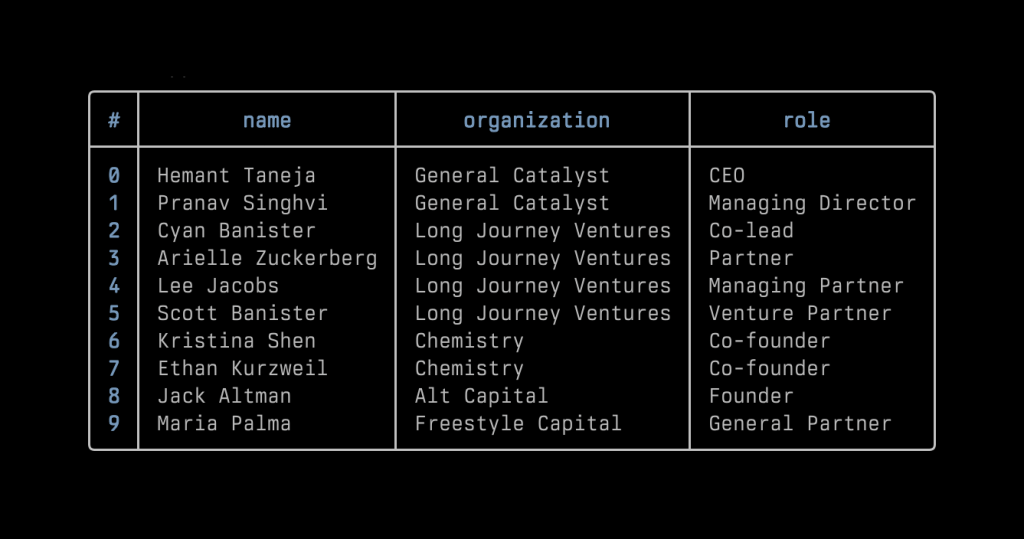
In an ideal circumstance, I would export the data into separate tables such as founders, venture capitalists, startups, and VC firms. I could take it a step further by asking an LLM to return another JSON array describing the funding activities, including the amount of money, the valuation if mentioned in the article, the round type, and so on. For now, I am keeping everything in a single table because the data is still fairly simple.
Just as some readers may think when they read this series of commands, I found it a bit cumbersome to type them all manually. Therefore, I asked ChatGPT to write some scripts to automate everything, and then I made the scripts into zsh aliases. Now my whole workflow is:
- Read the article
- Send it to Readwise Reader with a tag using a web browser extension or a single Alfred command
- Open Ghostty’s quick terminal and input the alias. Done
I think I can even make this shorter by combining steps 2 and 3 via a self-made Alfred Workflow.
Some Remaining Issues and Future Potential
And considering the other well-known characteristics of LLMs: they can’t produce deterministic results, which means we can’t expect the LLM to generate precisely the same role title in the same writing style for the same person or organization. For instance, some articles refer to the firm as “a16z,” while others use its full name, “Andreessen Horowitz.” Similarly, even for the same role, such as “CEO,” an LLM might output ”ceo” in lowercase or spell it out as “chief executive officer,” not to mention the inconsistency in capitalization. An LLM just can not retain the memory in the way I use the API. (There are many traditional solutions for these kinds of issues, though.)
Recently, I’ve been playing with Sourcegraph’s coding agent Amp Code. It’s a very good product, the pace of the team’s product development is incredible. I used its smart mode to normalize my flat table, then kept building on it using its free mode. I already completed the database migration and started to build a new version of my workflow. For instance, I can now get information like “Who is involved in Zed Industries’s latest round of fundraising?” more efficiently.
Or even better, with this database, I can use LLM CLI’s plugin like llm-tools-sqlite to ask an LLM questions about the data in natural language, and the model will generate the necessary SQL queries to retrieve the answer. I can also connect this database to Claude Desktop using an MCP server, which allows me query it in natural language directly from the app.
A Byproduct of Learning
I’ve spent more and more time in the terminal and shell environment after I started playing with Raspberry Pi a few years ago. By building up this workflow, I got familiar with LLM CLI and a bunch of other new tools. I’ve learned that shell scripts and Python scripts are nimble and versatile. With the help of ChatGPT and coding agents like Claude Code or Amp Code, I can quickly experiment with many ideas to improve the workflow. In the end, this AI news clipping workflow is more like a byproduct of my learning to use the software. It is really fun.
Again, I don’t use this workflow to process as many articles as possible. I use it as a reference to what I’ve already read. It’s more like a pitcher’s pitch-by-pitch tracking data: it doesn’t capture the whole game, and it certainly doesn’t replace the conversation between the pitcher and the pitching coach. The core is still the same: reading the news, taking notes, and writing down my own thoughts.
As I mentioned earlier, it’s possible to apply this workflow to many other kinds of news, like professional sports player trades, business, or politics, once you can break down the news content into structured elements, such as people, organizations, events, and so on. If you have tried it, I’m happy to learn how things are going.
 YPWU
YPWU 